
Documentation Index
Fetch the complete documentation index at: https://docs.chatzy.ai/llms.txt
Use this file to discover all available pages before exploring further.
Contacts Dashboard
The Contacts Dashboard is your central hub for managing all your leads and customers. Here, you can view, filter, and organize your contact list to better manage your audience.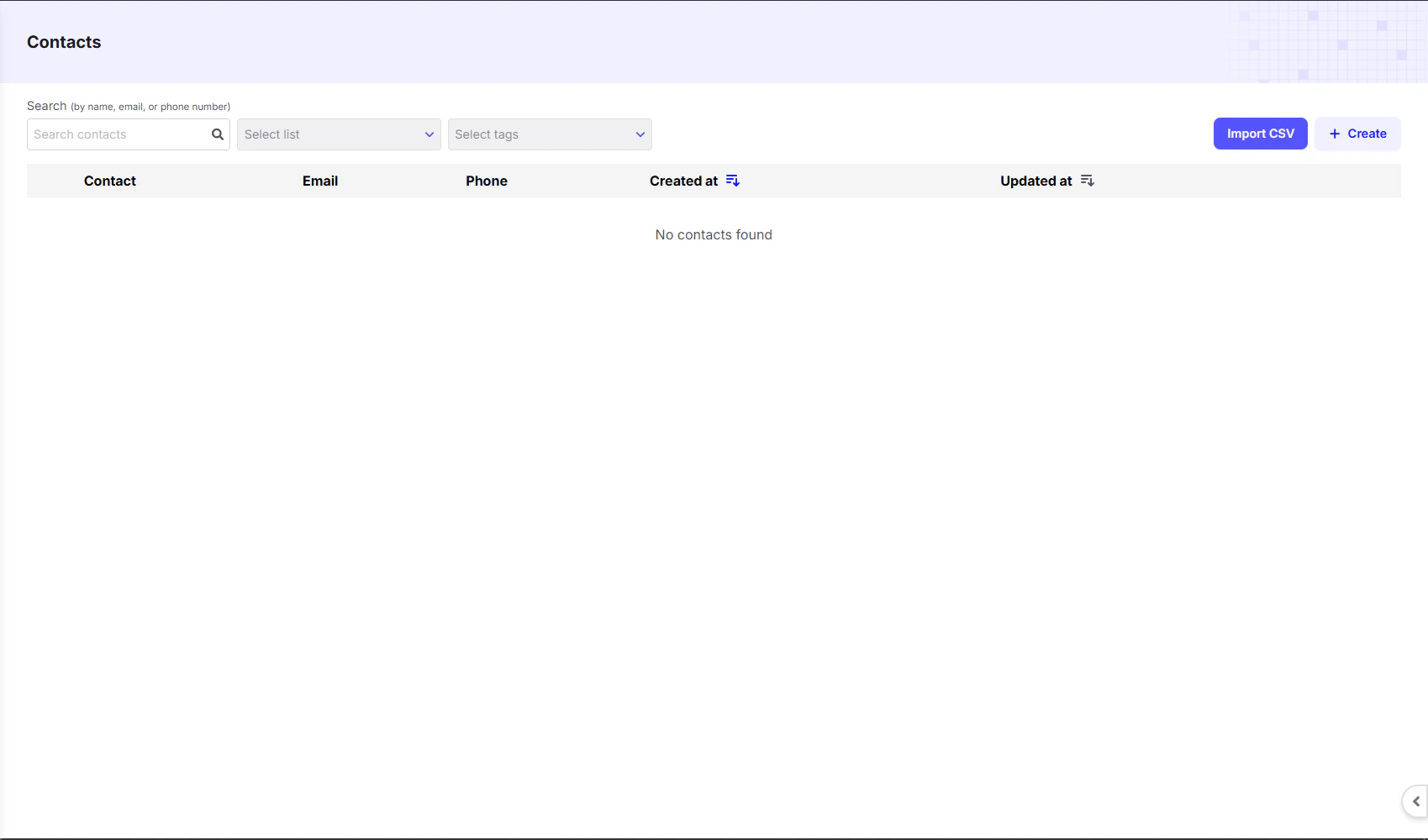
Key Features
- Search & Filters: Quickly find contacts using the search bar or filter them by selecting a specific list or tags. This allows you to segment your audience for targeted campaigns.
- Import CSV: Import contacts in bulk from an existing file to quickly add your entire contact list.
- Create: Use the
+ Createbutton to manually add a new contact. - Contact List: The main table provides a clear overview of your contacts, including their name, email, phone number, and when their record was created or updated.
- Contact Card: Click on any contact to open their card, which shows:
- Basic Information – First Name, Last Name, Email, Phone Number
- Attributes – Custom details such as City, Gender, or Last Purchase Date
- Tags – Labels to categorize the contact, e.g.
VIP,Lead, orSupport.
Contact Management
The dashboard makes it easy to manage your audience by either manually creating contacts or importing them in bulk.Create New Contact
When you click the+ Create button, a pop-up appears where you can manually add a single contact.
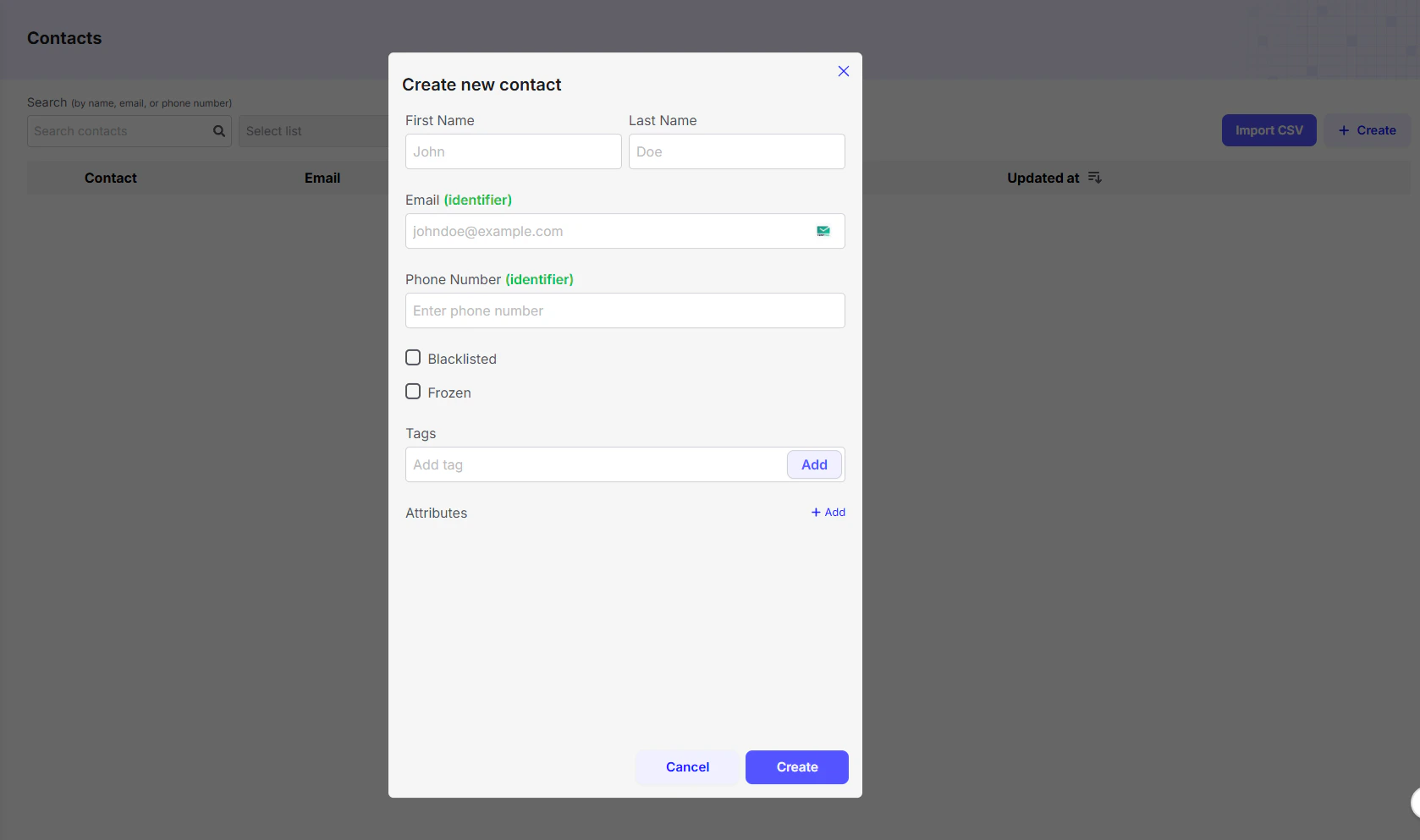
- First Name & Last Name: Enter the contact’s name.
- Email & Phone Number: Used as primary identifiers. At least one is required.
- Blacklisted: Prevents any communication from being sent to this contact.
- Frozen: Temporarily pauses communication with the contact.
- Tags: Add labels to categorize the contact (e.g.,
VIP,Lead,Support). - Attributes: Store custom data points (e.g.,
City,Last Purchase Date).
Import Contacts (CSV)
The Import CSV option lets you upload a spreadsheet to add multiple contacts at once. The process has three steps: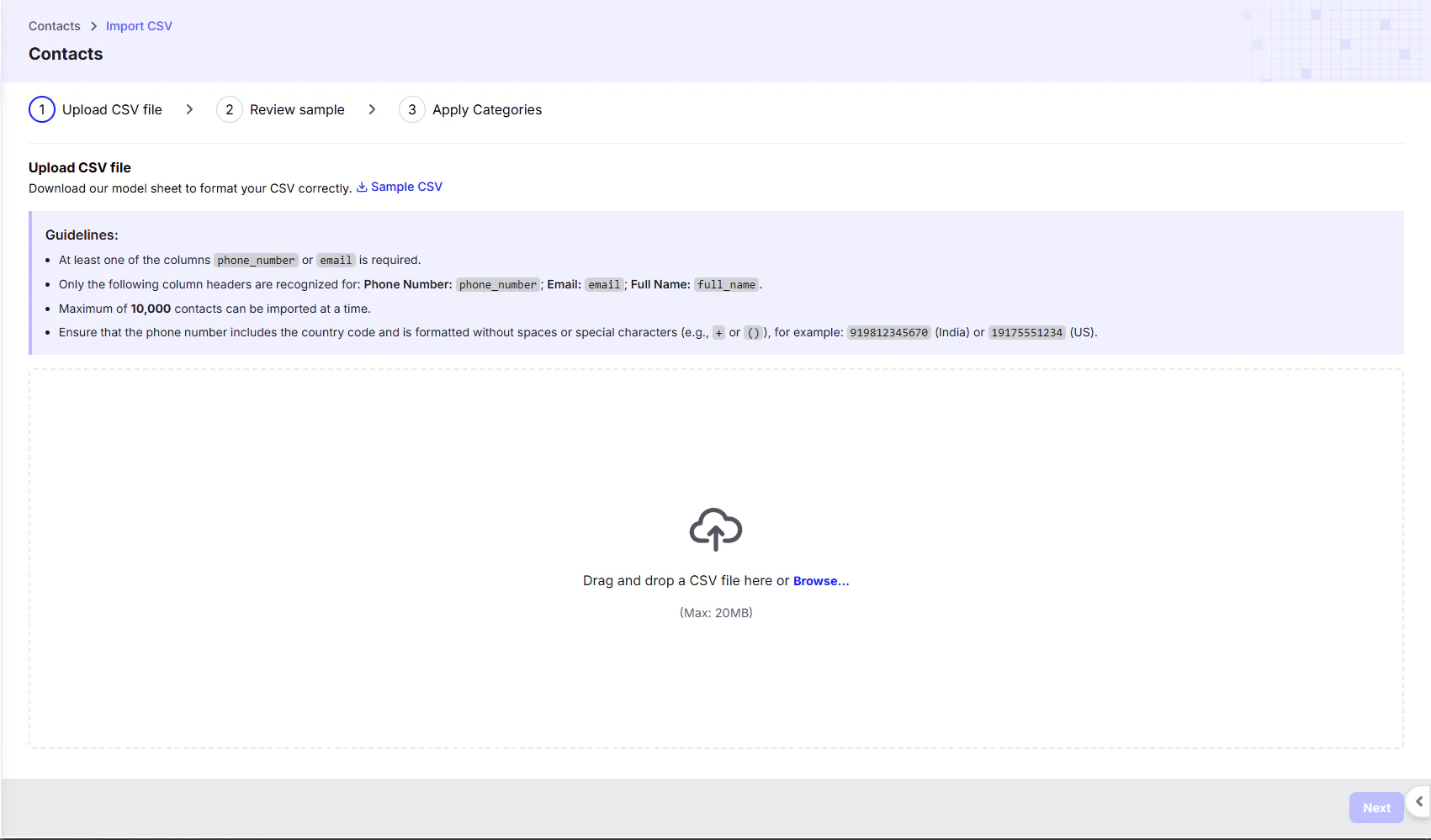
- You can save an Excel sheet as a CSV file and import it.
- A sample CSV file is provided—download it to check the correct format.
- The file must include either a
phone_numberor anemailcolumn to uniquely identify each contact. - Accepted column headers:
phone_number(for phone numbers)email(for email addresses)full_name(for full name)
- Maximum of 10,000 contacts per upload.
- Must include the country code.
- Do not include a plus sign before the country code.
- Avoid spaces, brackets, or special characters.
- Example: An Indian number should have 12 digits including the country code
91.
- After uploading, review a sample of your data to confirm proper formatting.
- You can select an existing list or create a new list to keep imported contacts organized.
- If no list is selected and you click Finish, Chatzy AI will auto-create a list named “Import” with the current date and time.
Attributes & Custom Data
- Any additional columns in the CSV (e.g., Gender, Age, Address, Country) are stored as custom attributes.
- Attributes are saved as key-value pairs (e.g.,
Gender: Male).
After Import
- Once imported, all contacts including their name, email, phone number, and creation date appear in the Contacts Dashboard.
- Click any contact to view or edit:
- Basic Information – First Name, Last Name, Email, Phone Number
- Custom Attributes – All extra columns from your CSV file.
- You can update or edit a contact’s details at any time.