
This guide explains how to verify your META Business Portfolio step-by-step using META Business Settings. Verification helps you:Documentation Index
Fetch the complete documentation index at: https://docs.chatzy.ai/llms.txt
Use this file to discover all available pages before exploring further.
- Build trust with META
- Access advanced advertising features
- Reduce account restrictions
- Improve ad account credibility
- Display business name instead of number
Step 1: Open META Business Settings
Go to your META Business Portfolio settings dashboard. https://business.facebook.com/latest/settings/business_infoStep 1: Add Business Details
Before starting verification, make sure your business information is properly filled.
- Legal business name
- Address
- Phone number
- Website
Instructions
- Click Edit
- Add all business information
- Save the changes
Important
Your business information should exactly match your official documents.step 2: Open view details on Business verification status

Step 3: Open Authorisations and Verifications
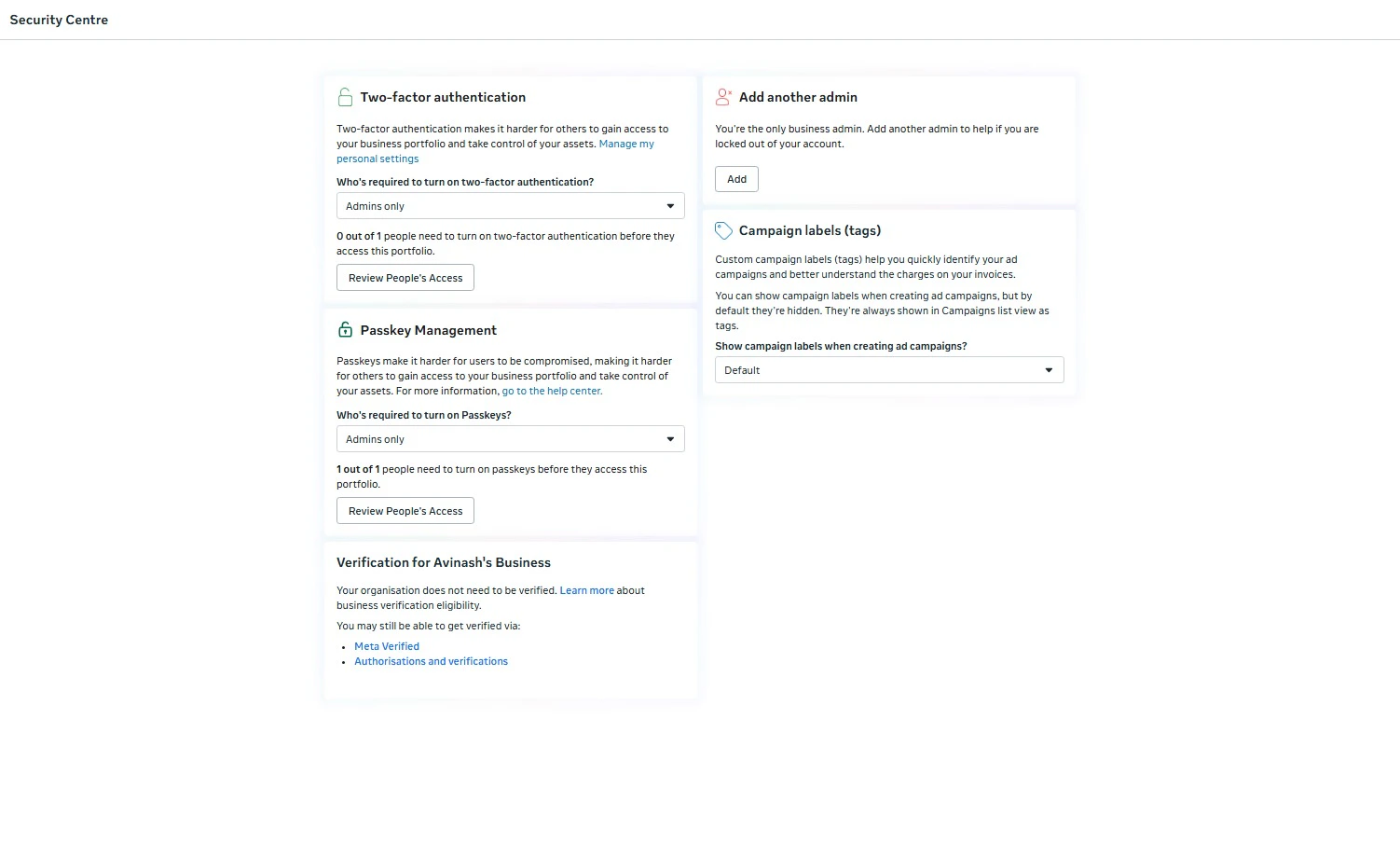
- Scroll down
- Open Authorisations and verifications
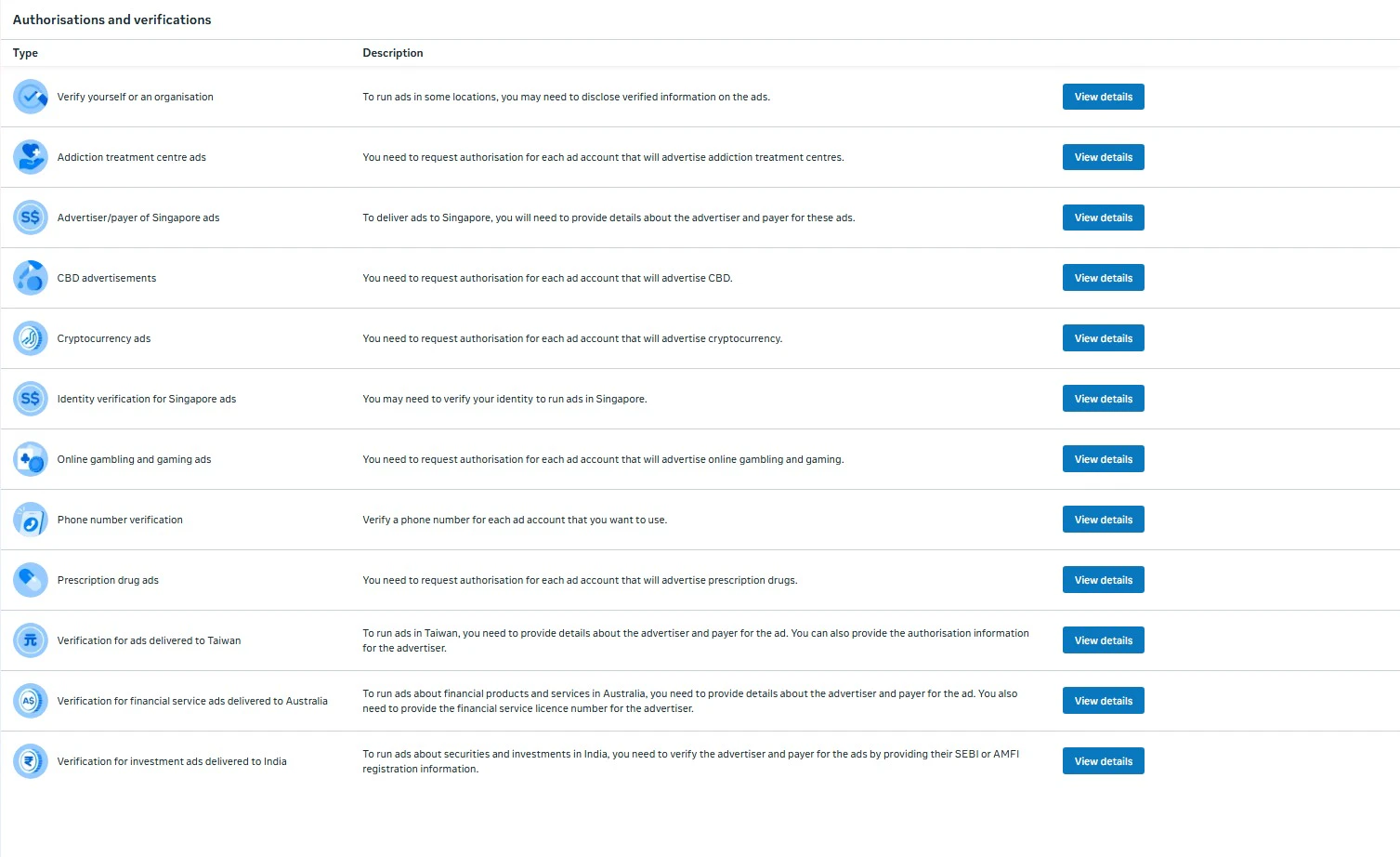
Instructions
Click View details beside:- Verify yourself or an organisation
Step 4: Start Verification
Here you’ll get two options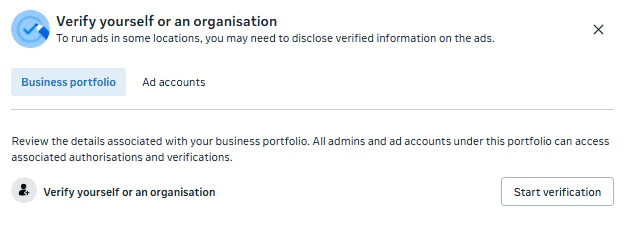
Instructions
- Select Business portfolio
- Click Start verification
Step 5: Begin the Verification Process
META will show a verification introduction popup.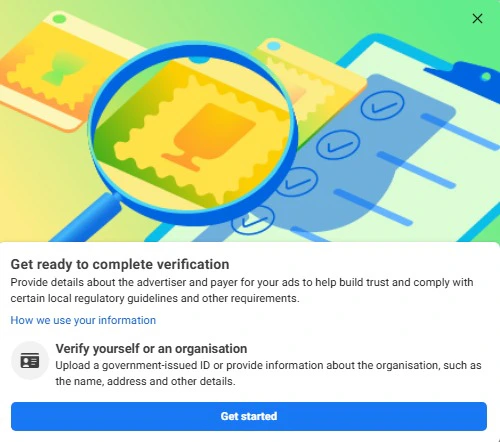
Note
META may ask for:- Government-issued ID
- Business registration details
- Contact verification
- Income Tax Return
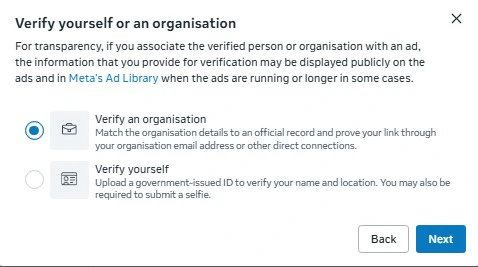
Step 6: Choose Verification Type
You will now see two verification options.Option 1: Verify an organisation
Choose this if:- You own a registered company
- You have business documents
Option 2: Verify yourself
Choose this if:- You are an individual advertiser
- You do not own a registered business
Recommended
For businesses, select:- Verify an organisation
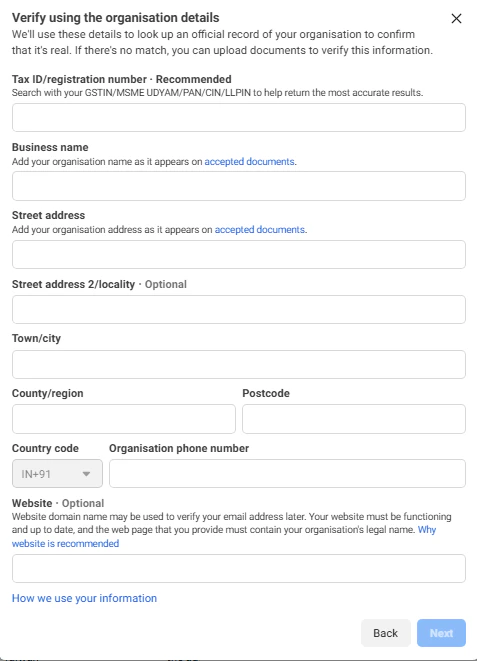
Step 7: Enter Business Information
Fill all required details carefully. Required fields:- Legal business name
- Full address
- City with postcode
- Phone number
- Website
- Business Tax ID
- Registration Number
Important
- Your website should be active
- Your business’s registered name and registered address in the website footer.
- Details should match official records
Step 8: Select Matching Business Record
META will search public records based on your information.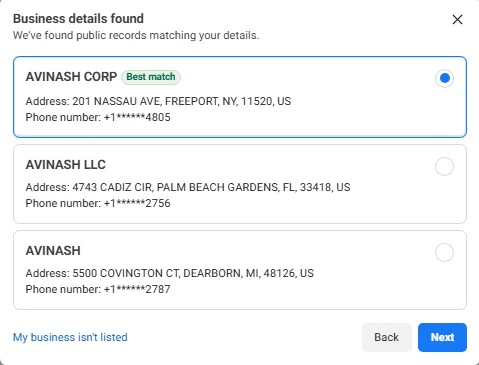
Instructions
- Select the correct business listing
- Verify address and phone number
- Click Next
If your business is not listed
Click:- My business isn’t listed
Step 9: Verify Contact Method
META will ask you to confirm ownership using a verification code. Available methods:- SMS
- Phone call
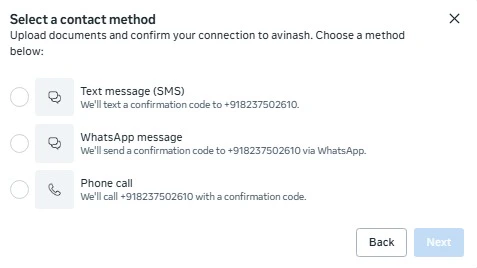
Instructions
- Choose a verification method
- Receive the code
- Enter the code
- Submit verification
Step 10: Wait for META Review
After submission:- META reviews your details
- Verification may take a few hours to several days
- GST Certificate
- Business Registration Certificate
- Utility Bill
- Business PAN
- Domain ownership proof
Common Reasons for Verification Rejection
Mismatched Business Name
Your submitted business name does not match official records.Website Issues
Your website may:- Be inactive
- Not contain business information
- Not match submitted details
Incorrect Phone Number
META could not verify your contact number.Missing Public Records
Your business may not appear in public databases.Recommended Best Practices
Before applying for verification:- Enable Two-Factor Authentication
- Use a domain email address
- Keep all business details consistent
- Use official business documents only