
This guide explains how to enable and set up WhatsApp calling to assign a Voice AI Agent to answer incoming calls or make outgoing calls via Chatzy AI.Documentation Index
Fetch the complete documentation index at: https://docs.chatzy.ai/llms.txt
Use this file to discover all available pages before exploring further.
Requirements
- Connected WhatsApp Number: You must have a WhatsApp number connected in the Channels section.
- Voice AI Agent: You must have a configured Voice AI Agent.
Enable WhatsApp Calling
- Navigate to Channels in the left-hand menu.
- Click on WhatsApp. Your connected WhatsApp numbers will appear here.
- Click the Three Dots icon under the Actions column and select Enable WhatsApp Calling.
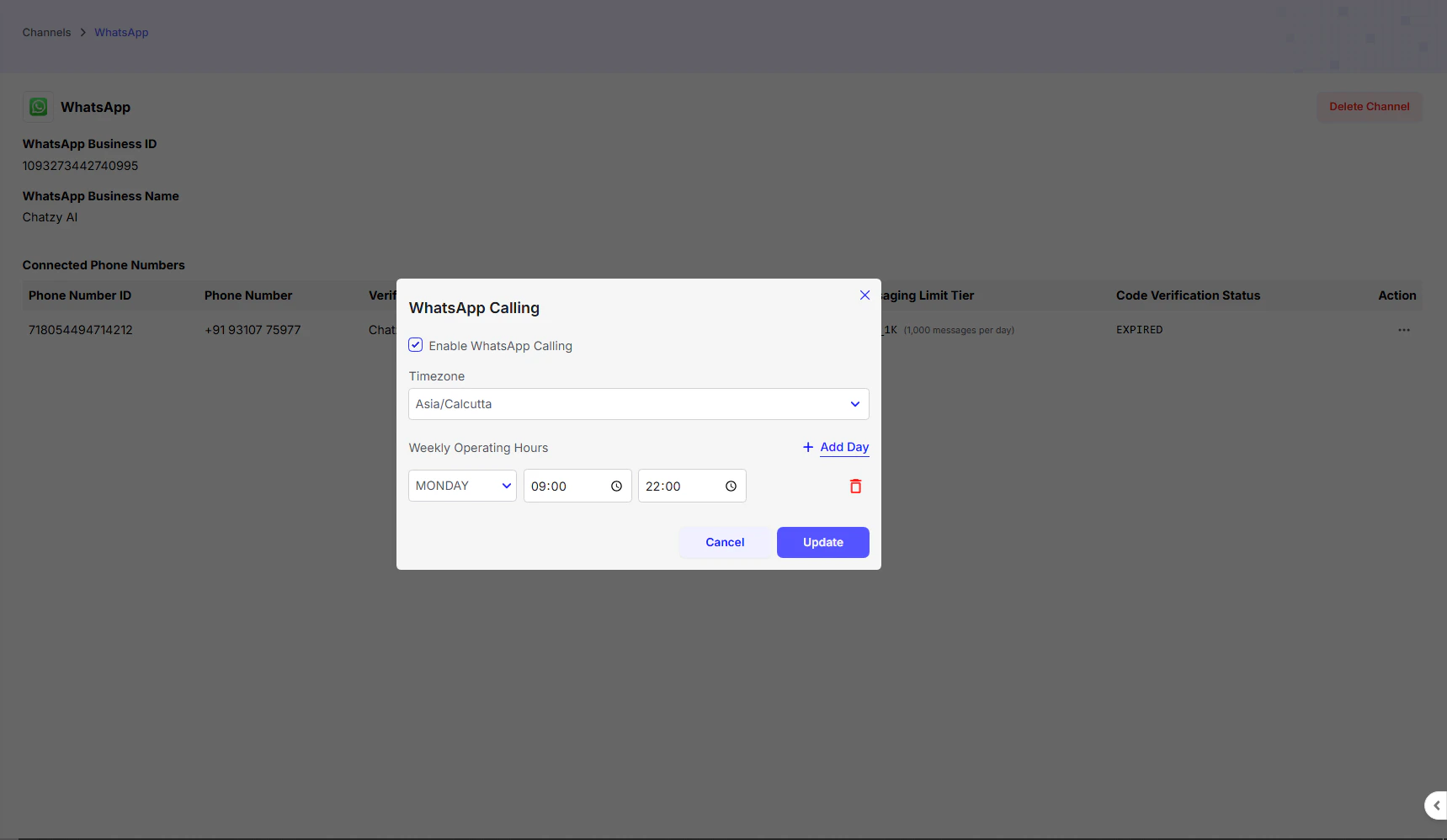
- Check the box labeled Enable WhatsApp calling.
- Configure your weekly working hours and select the correct Time Zone.
- Click Save or Update.
Call Handling Setup
Incoming Calls – Assign to Voice AI Agent
Incoming Calls – Assign to Voice AI Agent
Set Up Voice AI Agent for Incoming Calls
- Go to the Journeys section.
- Click Create Journey, give it a name, choose Blank Template, and click Create.
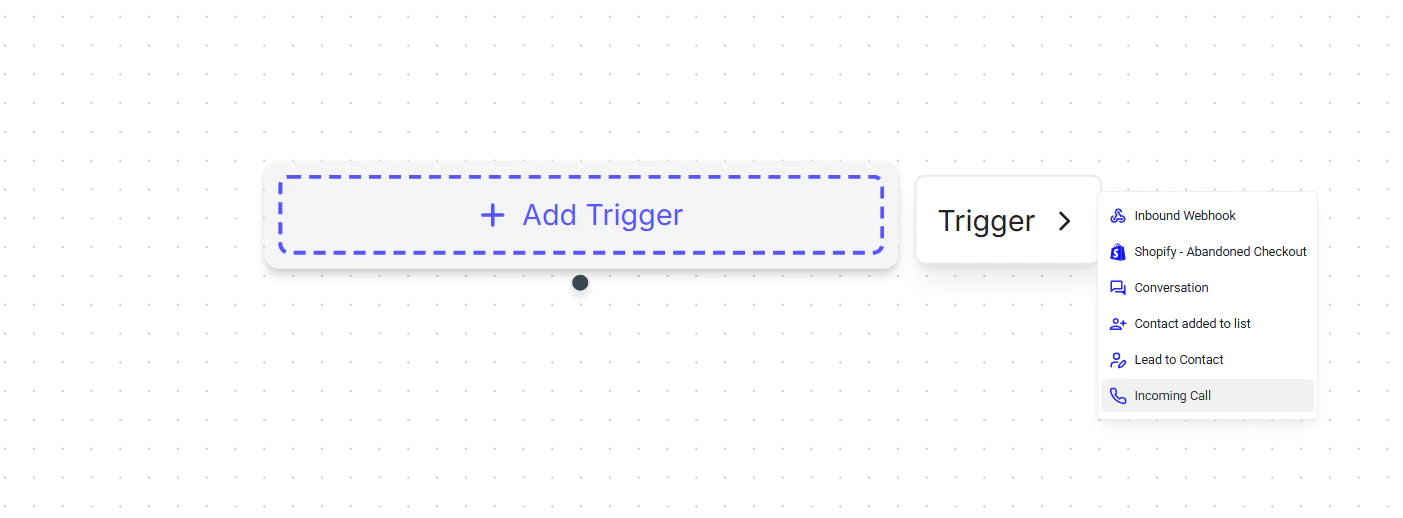
- Click Add Trigger → select Incoming Call.
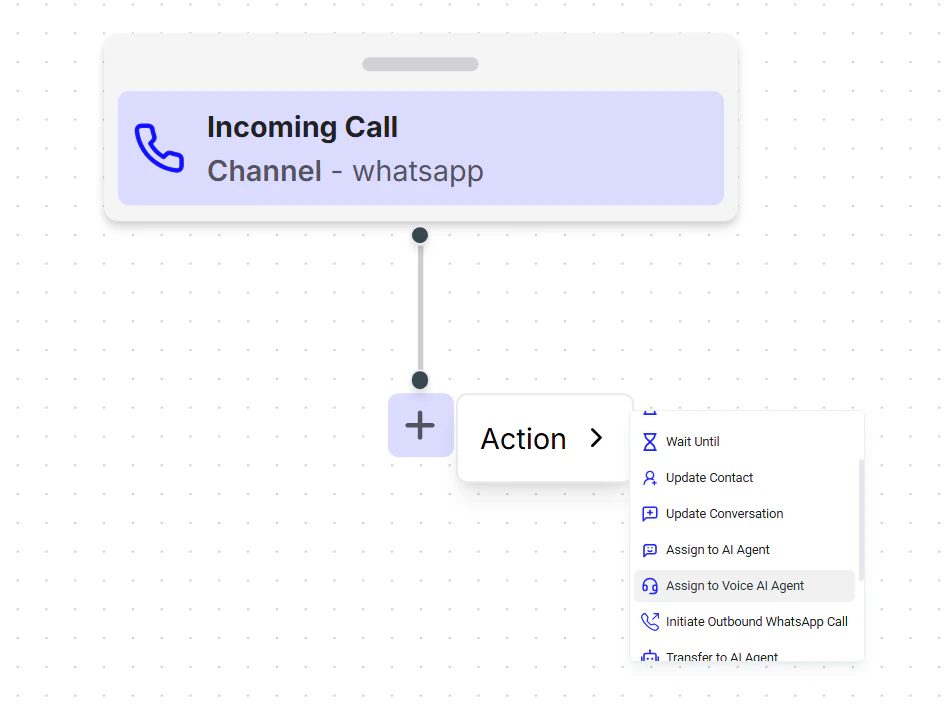
- Add an action → select Assign to Voice AI Agent.
- Open the settings of the action. Select the Voice AI Agent from the dropdown.
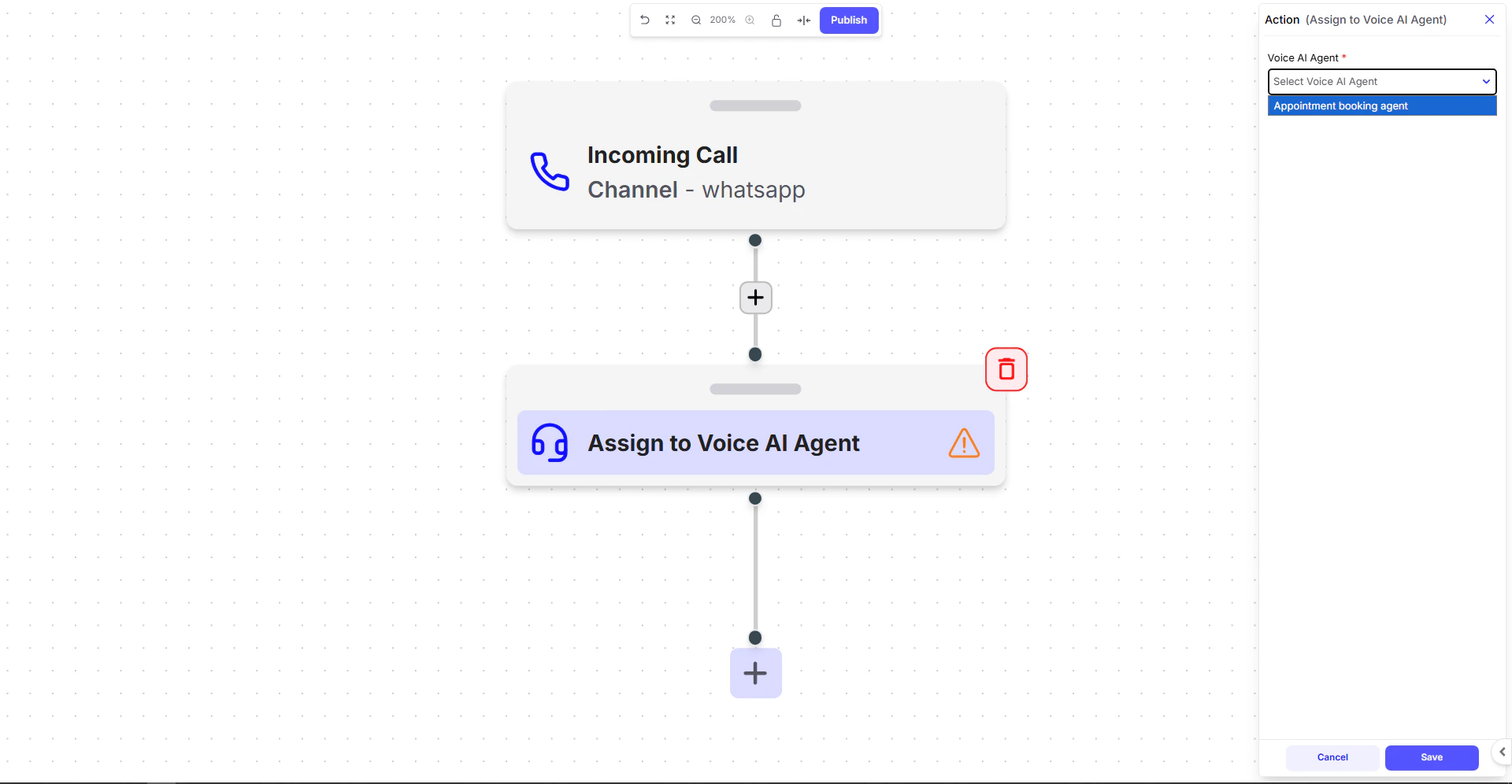
- Click Save, then Publish to activate the journey.
Outbound Calls – Using Voice AI Agent
Outbound Calls – Using Voice AI Agent
Step 1: Create a WhatsApp Call Permission Template
For business-initiated WhatsApp calls, you must first get the user’s permission.- Go to Message Templates → select WhatsApp.
- Click + Create Template.
- Set Category: Marketing, give it a name, and choose the Language.
- Write your permission message inside the Body field.
- Enable the Call permission request toggle.
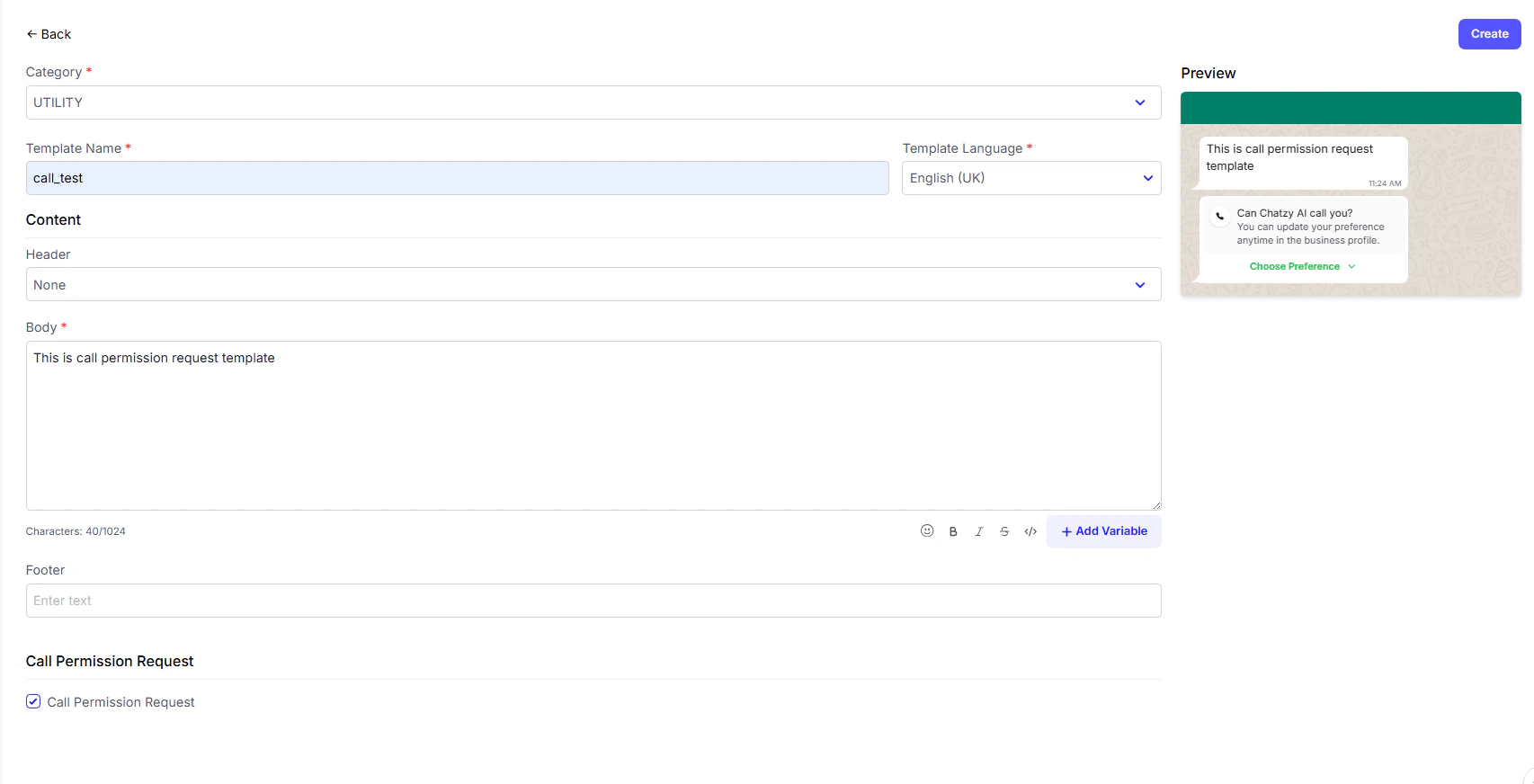
- Review the preview and click Create.
WhatsApp may take up to 24 hours to approve the template.
Step 2: Set Up Outbound WhatsApp Calls in Journeys
- Go to Journeys and open the journey where you want to trigger the call.
-
Go to the step after which the call should be initiated (e.g., after an
Execute Codeaction,Waitaction, etc.). - Add a new action: Initiate Outbound WhatsApp Call.
- Set the correct Phone Number, depending on the trigger:
-
Inbound Webhook trigger:
{{inbound_webhook.phone_number}} -
Conversation trigger:
{{contact.phone_number}}
- Select the Voice AI Agent that should make the call.
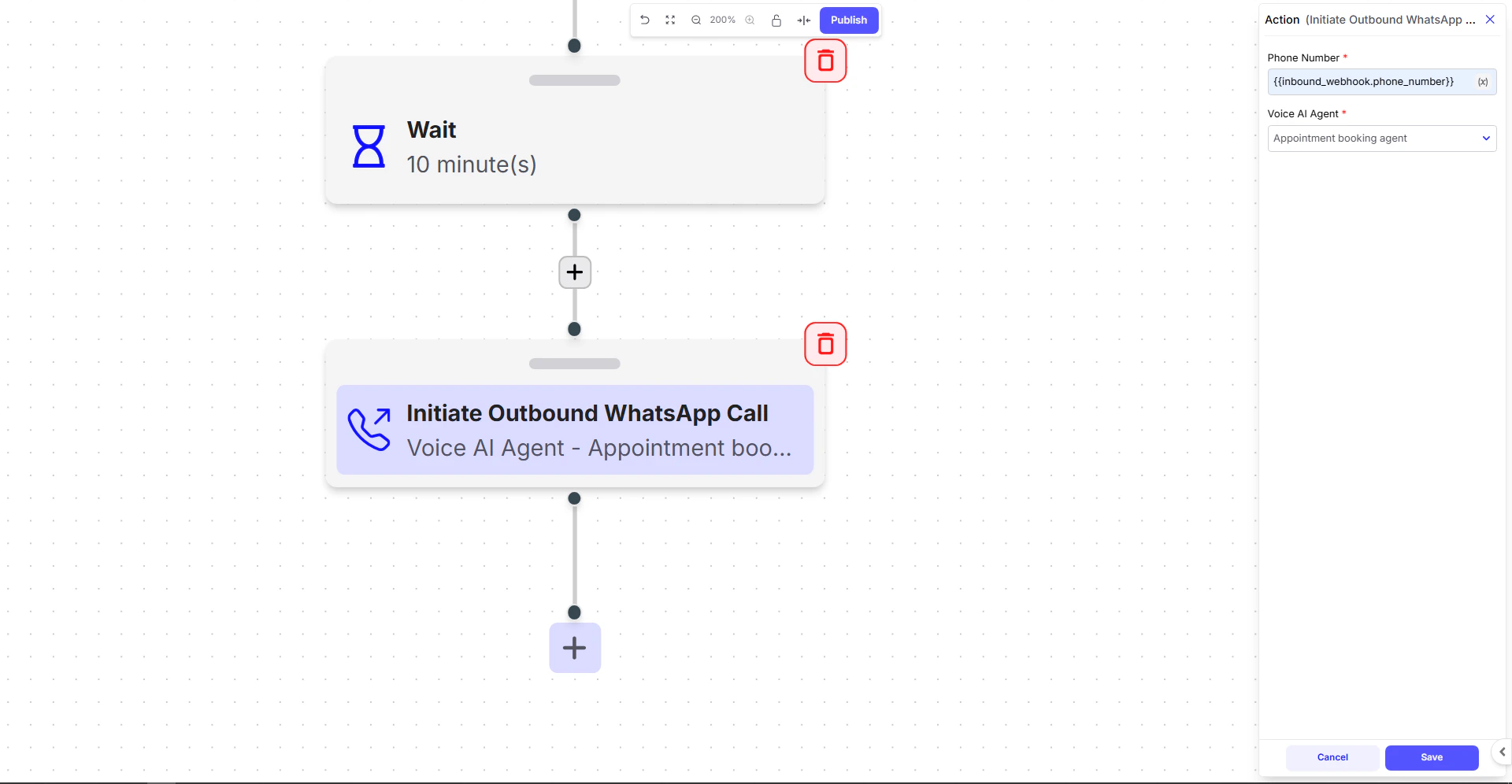
- Click Save, then Publish.
Learn more about how call buttons work inside a Conversational AI Agent.