
Documentation Index
Fetch the complete documentation index at: https://docs.chatzy.ai/llms.txt
Use this file to discover all available pages before exploring further.
Overview
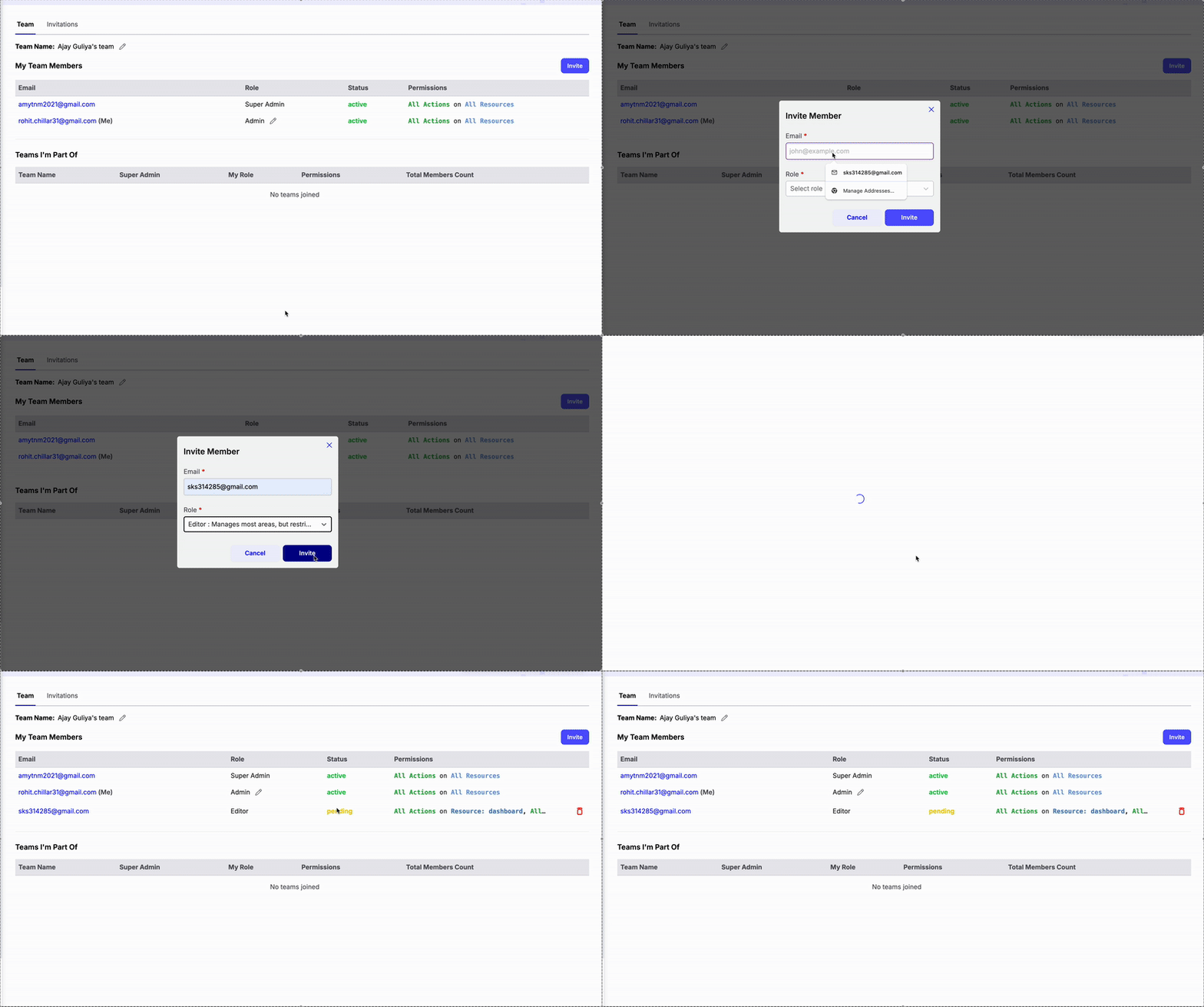
The Invite Team Members feature allows you to easily add new users to your Chatzy AI account and assign them specific roles with defined permissions.Steps to Invite Team Members
- Go to the Invite Team Members section in the bottom left corner of the sidebar.
- Click the Invite button.
- Enter the email address of the person you want to invite.
- Assign a role to them before sending the invitation.
Roles in Chatzy AI
In Chatzy AI, you can assign one of the following roles:- Super Admin – Automatically assigned to the account owner. Full access to all features and cannot be removed.
- Admin – Full access to all areas except removing the Super Admin.
- Editor – Can manage most areas of the platform but cannot perform sensitive actions like managing the team, billing, disconnecting channels (WhatsApp, Instagram, Messenger), or accessing advanced chatbot settings.
- Viewer – Can view dashboards, reports, campaign performance, and contacts but cannot change settings or access sensitive features.
- Agent – Can reply to customers from the Conversations tab but cannot access other areas of the platform.
- Viewer Agent – Can both reply to conversations and view dashboards, campaign performance, and journey runs.
Invitation Status
Once an invitation is sent, you can track its status:- Pending – The invite hasn’t been acted on yet.
- Accepted – The user has joined the team.
- Rejected – The invite was declined.
After Sending the Invite
- The invited user will receive an email invitation.
- If the invitee does not yet have a Chatzy AI account, they can create one using the same email address, or simply click the invitation link.
- After clicking the link, they will be redirected to the Chatzy AI app > Invitations tab, where they can accept or reject the invite.
- Once accepted, their status will change to Active in your My Team Members list.
Managing Your Invitations
- If someone else invites you to their team, you’ll also find the invitation under the Invitations section in your account.
- You can choose to accept or reject it.
- On accepting, the team will appear under Teams I Am Part Of in your account.