
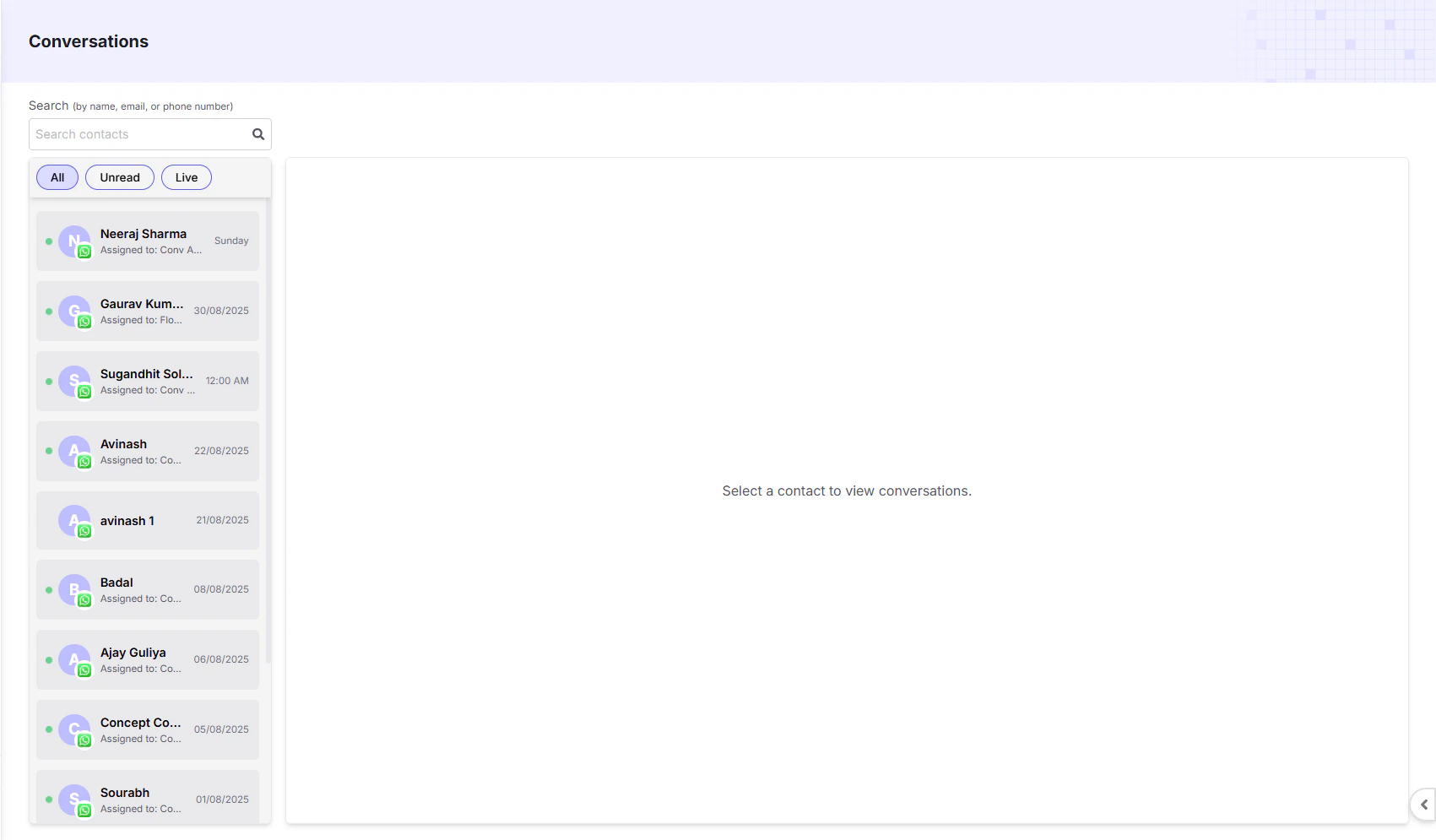
The Conversations Dashboard is your central inbox for managing all customer conversations across connected platforms such as WhatsApp, Instagram, and Messenger. It unifies communication by bringing together chats handled by AI agents, automation flows, and human agents.Documentation Index
Fetch the complete documentation index at: https://docs.chatzy.ai/llms.txt
Use this file to discover all available pages before exploring further.
Key Features
- Search: Quickly find a specific contact by their name, email, or phone number.
- Filters: Use the tabs at the top to filter your conversation list:
- All: Displays every conversation.
- Unread: Shows only new or unanswered conversations.
- Live: Displays conversations currently active or being handled by a human agent or AI.
- Conversation List: The left sideb ar shows a list of all conversations with the contact’s name, the messaging channel icon (WhatsApp, Instagram, Messenger), and the date of the last message.
- Conversation View: The main area shows the full chat history. Click a contact to see the entire conversation along with their profile details. Clicking the contact’s name opens a contact card on the far right displaying basic details, tags, attributes, and creation date.
- Media Sharing: You can send images, PDFs, and other media. If a user sends a media file, you can download it by clicking on it and selecting Save.
Indicators
-
Green Dot = Active or live conversation, being handled by one of the following:
- Conversational AI Agent – natural language AI.
- Flow-based AI Agent – guided workflows.
- Human Agent – a team member.
- Unread Chats: Display a blue tick in the conversation list until opened.
- Sorting: Conversations are always sorted by the latest activity (most recent at the top).
Switching Roles and Handlers
- To pause AI or automation, close the conversation.
| Situation | What Happens |
|---|---|
| Assigned to Human Agent | AI responses and campaigns are paused |
| Assigned to AI Agent / Flow | Human replies and campaigns are paused |
| Close Conversation | Resets the assignment and gives you direct control |
WhatsApp 24-Hour Rule
- If a contact has messaged within the last 24 hours, your business can freely send messages and media.
- After 24 hours of no incoming message, WhatsApp restricts outgoing messages: you can only send a pre-approved template message.
- In this case, the text box is disabled and you will see an option to Send Template.
- Click Send Template, choose a template, and send it. Once sent, the conversation becomes active again and gets assigned to an agent, allowing you to close or reassign it if needed.
Note: Instagram and Messenger have no 24-hour restrictions. You can message contacts at any time.
Campaigns & Automation Behavior
- When a conversation is assigned to a human agent, AI bots and campaigns stop interacting with that contact.
- When a conversation is live with a Conversational AI or Flow AI, campaigns will skip sending template messages to avoid conflicts.
Team Access
-
Team members with the Agent role can:
- View the Conversations tab.
- Respond to messages directly.
-
To assign this role:
- Team Settings > Invite Members > Assign Role: Agent.