
Documentation Index
Fetch the complete documentation index at: https://docs.chatzy.ai/llms.txt
Use this file to discover all available pages before exploring further.
The Chat Widget Tab
The Chat Widget tab allows you to customize the look, feel, and functionality of your chatbot when it is embedded on your website. Proper customization ensures a smooth and on-brand chat experience for your users.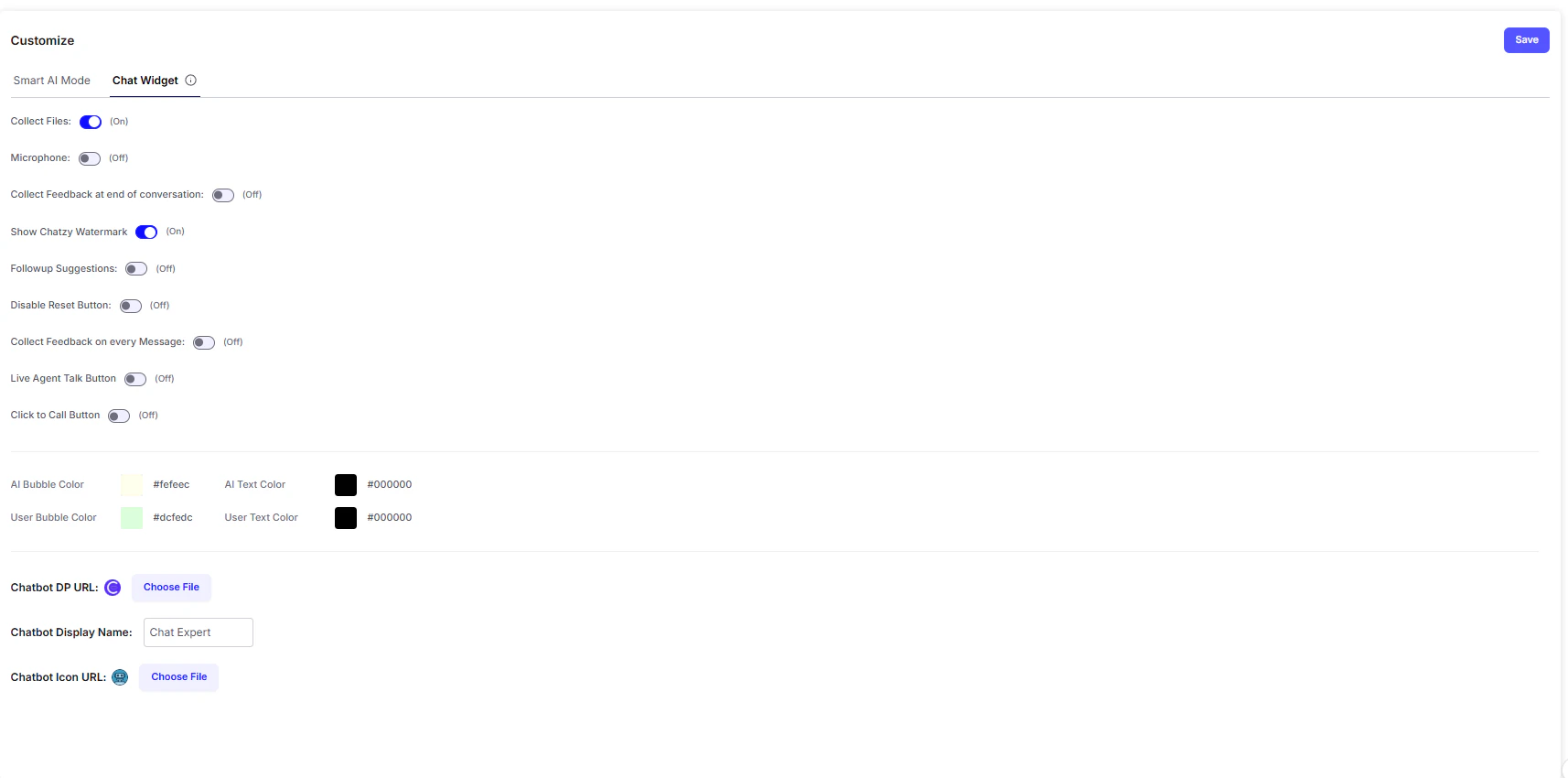
Key Features
-
Collect Files
Enables users to upload files (images, PDFs, documents) directly into the chat. Useful for cases like resume uploads, ID proof submissions, or support screenshots. -
Microphone
Adds a microphone button so users can send voice messages instead of typing, improving accessibility and convenience. -
Collect Feedback at End of Conversation
Prompts users to rate or provide feedback at the close of a session, helping you measure satisfaction and improve chatbot performance. -
Show Chatzy Watermark
Displays a small “Powered by Chatzy” watermark at the bottom of the widget. -
Follow-up Suggestions
Automatically provides suggested questions or prompts after each chatbot response, keeping the conversation engaging and guiding users forward. -
Disable Reset Button
Removes the option for users to clear conversation history, ensuring the full context of the session is preserved. -
Collect Feedback on Every Message
Adds a per-message rating system, allowing users to give real-time feedback on the chatbot’s answers. -
Live Agent Talk Button
Adds a one-click option to escalate the chat to a human agent, ensuring smooth handoffs for complex queries. -
Click to Call Button
Lets users instantly initiate a phone call from the chat widget especially useful for support or sales teams.
Branding & Design Options
-
Color Customization
Tailor the widget’s colors to match your brand identity:- AI Bubble Color → Background color of chatbot’s replies
- AI Text Color → Text color in chatbot replies
- User Bubble Color → Background color of user messages
- User Text Color → Text color in user messages
-
Chatbot DP URL & Chatbot Icon URL
- DP (Display Picture): The main profile image of your chatbot (visible inside the chat).
- Icon: The small floating image/button that appears on your website to open the chat widget.
Example Use Case
Imagine you’re running a real estate website:- A visitor starts chatting with the bot to check property listings.
- They use the Microphone button to send a voice query: “Show me 2BHK apartments in Pune under ₹50 lakhs.”
- The chatbot responds with results and provides Follow-up Suggestions like:
“Do you want to book a site visit?” or “Would you like financing options?” - The visitor clicks the Live Agent Talk Button to connect with a sales representative.
- At the end of the conversation, they are prompted with Feedback collection, helping you evaluate the bot’s performance.