
Documentation Index
Fetch the complete documentation index at: https://docs.chatzy.ai/llms.txt
Use this file to discover all available pages before exploring further.
Setting up Website
The Website channel allows you to embed your AI agent directly onto your website. By adding a simple code snippet, you can provide real-time support, lead capture, and customer engagement to your site visitors without requiring them to leave the page.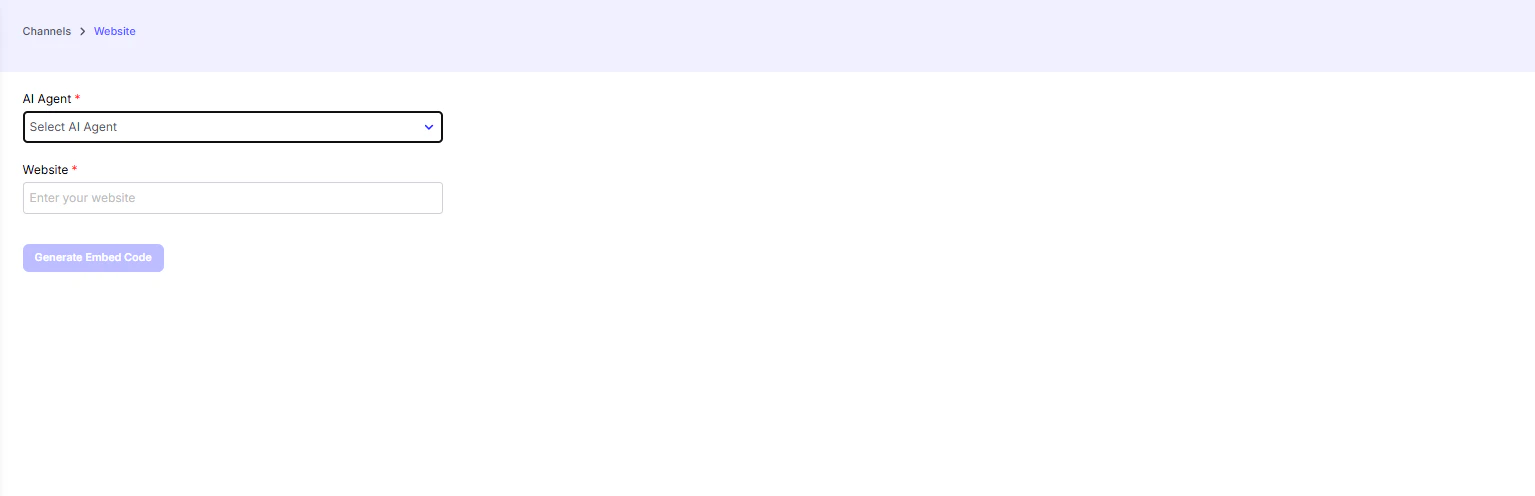
Steps to Set Up
-
Select Your AI Agent
From the dropdown menu, choose the AI agent you want to embed on your website. -
Enter Your Website URL
In the input field, enter the URL of the website where you want the chatbot to appear. This helps in generating the correct embed code. -
Generate Embed Code
Click “Generate Embed Code”. You’ll receive two options for integrating the chatbot into your site. -
Add the Code to Your Site
-
Embed Code (Floating Bubble)
Copy the provided<link>and<script>tags and paste them into the<head>section of your website’s HTML file.
This will display a floating chat bubble at the bottom-right corner of your site, allowing users to open and chat anytime. -
Iframe Embed (Full Frame)
Copy the provided<iframe>code and paste it into the<body>of your HTML file where you want the chatbot to appear.
This option allows you to embed the chatbot as a full-size interactive frame within a page, useful for dedicated support, contact pages, or Mobile app.
-
Embed Code (Floating Bubble)
Key Functions of Website Integration
- Seamless User Experience → Visitors can interact with your AI agent without leaving the site.
- 24/7 Support → Provide round-the-clock answers and assistance.
- Lead Capture → Collect user details directly through chat forms.
- Customizable Display → Choose between a floating chat bubble or a fully embedded iframe.
Example Use Cases
- E-commerce Store → Offer product recommendations and checkout assistance.
- Real Estate Site → Qualify leads by asking about location, budget, and property type.
- Service Business → Answer FAQs and let users book appointments directly.