
Documentation Index
Fetch the complete documentation index at: https://docs.chatzy.ai/llms.txt
Use this file to discover all available pages before exploring further.
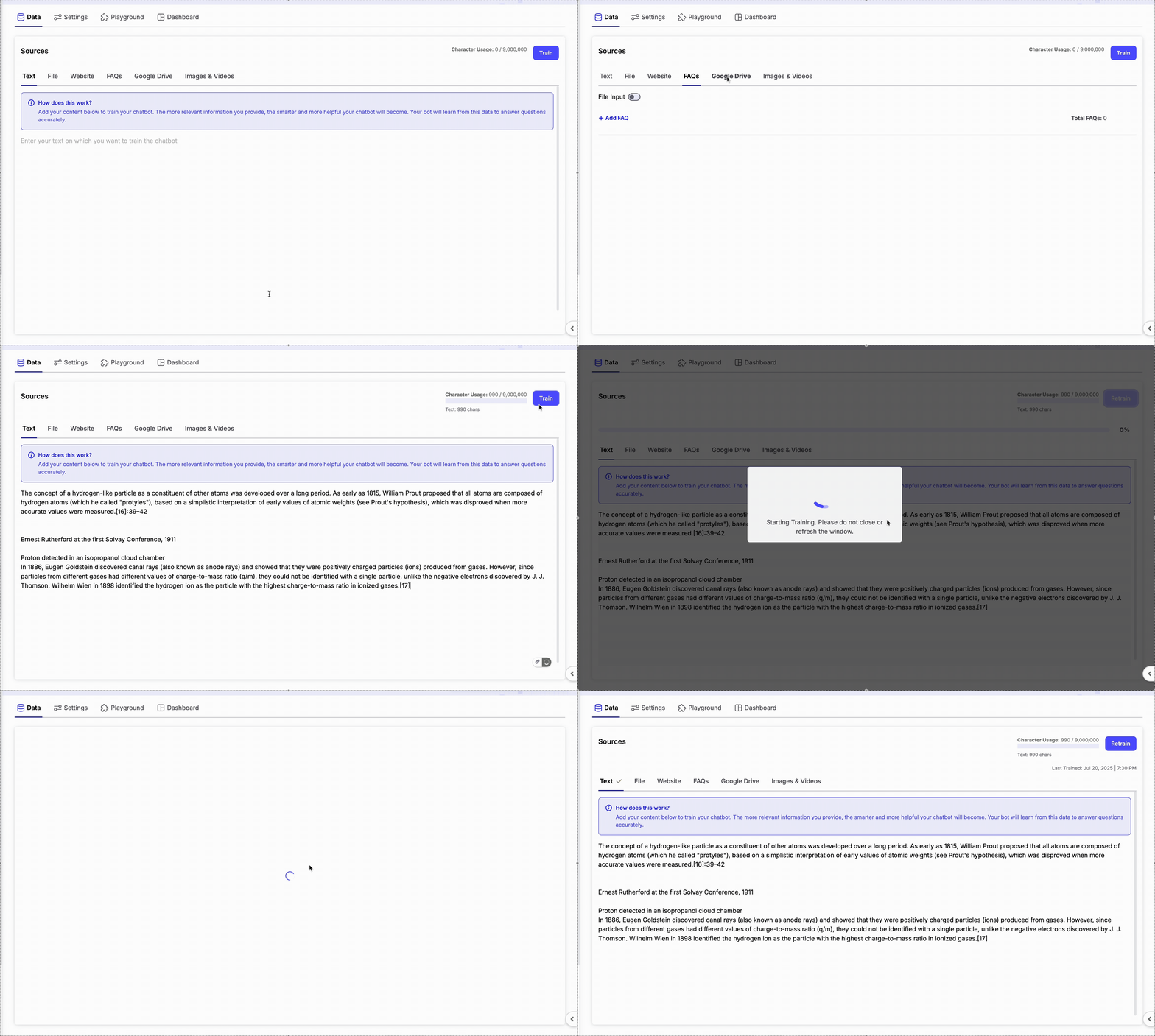
Supported Data Types:
- Text: Paste plain text directly into the platform.
- Files: Upload formats like
.pdf,.docx,.txt,.csv(max 20MB). - Website URLs: Add a URL and let Chatzy extract useful content.
- FAQs: Manually input question-answer pairs for precise responses.
- Google Drive: Link a public folder with view-only access.
- Images & Videos: Upload the Pics and Videos as a Data
Website Data Options
When adding Website URLs as a data source, Chatzy provides multiple ways to fetch content:-
Crawl
Automatically scans all pages linked from the given URL (excluding file downloads).
Example: enteringhttps://example.comwill crawl all linked pages under that domain. -
Sitemap
Provide an XML sitemap URL to fetch structured content from your website. -
Link
Add a single webpage URL to pull specific content. -
CSV File
Upload a CSV that contains multiple URLs for bulk training.
Apify Crawler (Optional) You can toggle Use Apify Crawler for a more advanced and accurate crawling option.
- It consumes 2 credits per webpage crawled.
- Designed to extract cleaner, structured data optimized for LLM training.
- Learn more: Apify Content Crawler.
The Website tab gives you flexibility — crawl entire sites, upload sitemaps, add single links, or bulk import via CSV. For maximum accuracy, enable Apify Crawler.
FAQ CSV Q&A Import
You can also bulk import FAQs by uploading a CSV file:- The first column will be treated as the question.
- The second column will be treated as the answer.
- The file must not contain headers.
Google Drive Import
You can connect your Google Drive to train your agent with files:- Enter the view-only link of a Google Drive folder containing your Sheets or Documents.
- The system will process all files inside the folder.
- Ensure the folder is publicly accessible (view-only).
Media Upload
You can upload media files to train your AI agent with visual or video references. Upload Guidelines:- Images: PNG and JPEG only, maximum 5MB each
- Videos: MP4 only, maximum 16MB each
- Descriptions: Each file requires a short description (maximum 25 words)
- Limit: Maximum 30 media files can be uploaded
- Upload files via drag-and-drop or file picker.
- Toggle Add Directly to Prompt if you want media links and descriptions to be included directly in the AI Agent’s base prompt.
🚀 Training Steps:
- Upload or connect your data.
- Click Train in the top-right corner.
- Wait for the progress bar to complete.
- Once training finishes, your bot is ready to use the data in live chats.
Source Type Summary
| Source Type | Example Formats | Max Size |
|---|---|---|
| Text | Manual paste | — |
| File Upload | PDF, DOCX, TXT, CSV | 20 MB |
| Website URL | Link to be crawled for data | — |
| FAQ | Q&A pairs for knowledge | — |
| Google Drive | Folder link with docs | — |
| Media Upload | PNG, JPEG, MP4 | 5 MB (image), 16 MB (video), max 30 files |