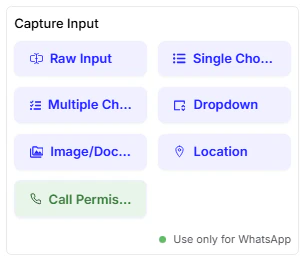
Within a Node, the Capture Input cards are used to collect information from the user in various formats. These are your primary tools for gathering data during a conversation.Documentation Index
Fetch the complete documentation index at: https://docs.chatzy.ai/llms.txt
Use this file to discover all available pages before exploring further.
Raw Input
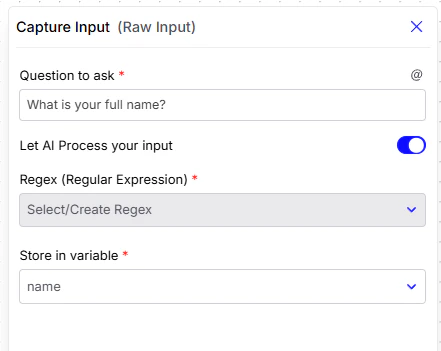
This card asks the user an open-ended question and captures their response as free-form text. It’s ideal for questions that require a unique, typed answer, like a name or a detailed request.- Question to ask: The message the user will see.
- Let AI Process your input: A toggle to let the AI analyze and understand the user’s free text response.
- Regex (Regular Expression): An advanced option to validate the user’s input with a specific pattern (e.g., an email address format or a phone number).
- Store in variable: Saves the user’s response in a variable for later use in the flow.
Single Choice
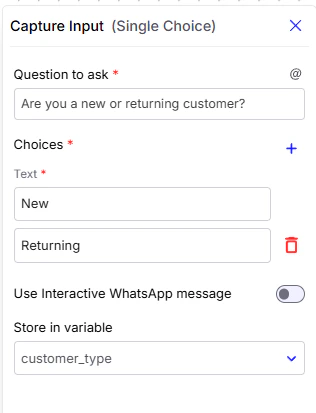
This card presents a set of options from which the user can select only one.- Question to ask: The message the user will see.
- Choices: The list of options you want to present to the user.
- Use Interactive WhatsApp message: A toggle to format the choices as interactive buttons when the chatbot is integrated with WhatsApp.
- Store in variable: Saves the user’s selection in a variable for later use in the flow.
Multiple Choice
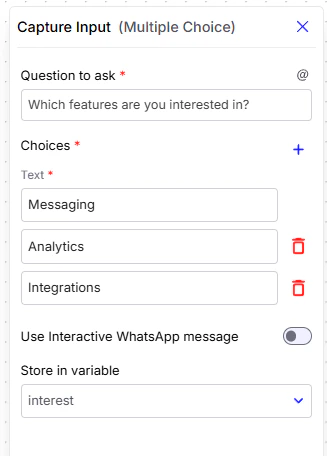
This card allows the user to select one or more options from a list.- Question to ask: The message the user will see.
- Choices: The list of options you want to present.
- Use Interactive WhatsApp message: A toggle to format the choices as an interactive WhatsApp message.
-
Store in variable: Saves the user’s selections in a variable.
Dropdown
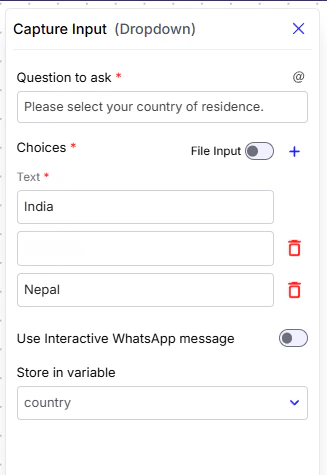
This card provides a compact menu for the user to select a single option from a list.- Question to ask: The message the user will see.
- Choices: The list of options to be included in the dropdown menu.
-
File Input: Use this option when you have a large number of dropdown choices that would be tedious to add manually. Instead of typing them one by one, you can upload a CSV file where the first column contains the list of options.
How it works: Once you upload the CSV, each row in the first column is automatically converted into a dropdown option. The file must not contain headers. This allows you to quickly manage and update dropdowns without manual entry.
- Use Interactive WhatsApp message: A toggle to format the choices as an interactive WhatsApp message.
- Store in variable: Saves the user’s selection in a variable.
Image/Document Upload
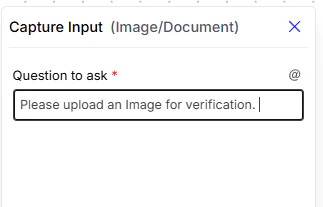
This card enables the user to upload files, such as images or documents, directly into the conversation.- Question to ask: The message the user will see.
Location
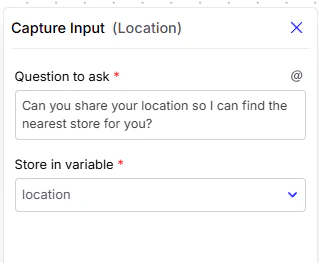
This card prompts the user to share their geographical location.- Question to ask: The message the user will see.
- Store in variable: Saves the user’s location data in a variable.
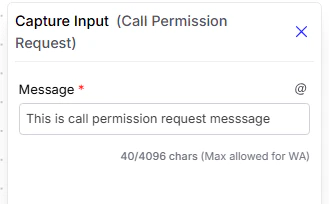
Call Permission Request
This card prompts the user to grant permission for voice calls. (Note: This is a WhatsApp-exclusive card).- Message: The text displayed to the user immediately above the call permission request.