
The Wait Until action pauses a journey until a specific event or condition is met, rather than a fixed amount of time. This enables dynamic flows that can adapt to user inactivity, responses, or other real-time events.Documentation Index
Fetch the complete documentation index at: https://docs.chatzy.ai/llms.txt
Use this file to discover all available pages before exploring further.
Configuration Fields
-
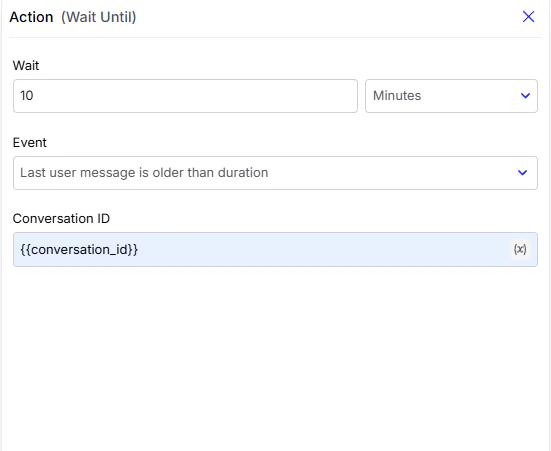
Wait
Defines the duration linked to the selected event. For example, if the event is Last user message is older than duration, you can specify the duration here (e.g., 10 minutes). - Event
-
Last user message is older than duration
Useful for re-engaging users who haven’t replied for a certain time.- Conversation ID
Identifies the specific conversation that the action should monitor for the defined event.
{{conversation_id}}
- Conversation ID
Identifies the specific conversation that the action should monitor for the defined event.
-
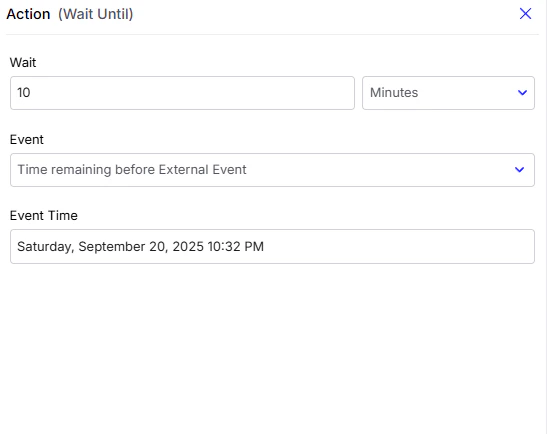
Time remaining before external event
Triggers an action before a scheduled event.
- The event time must be provided in the format:
Each symbol has a meaning:
%A → Full weekday name (e.g., Monday, Tuesday)
%B → Full month name (e.g., September, January)
%d → Day of the month (01–31)
%Y → Full year (e.g., 2025)
%I → Hour (01–12, 12-hour clock)
%M → Minutes (00–59)
%p → AM or PM indicator
e.g. Wednesday, September 17, 2025 07:30 PM
Sending Meeting Reminder Before Scheduled Time
Sending Meeting Reminder Before Scheduled Time
Suppose you have a meeting booking form on your website. When a user books a meeting, the details (date & time) are sent to your CRM. From there, the CRM triggers an Inbound Webhook in Chatzy.You can then set up a flow like this: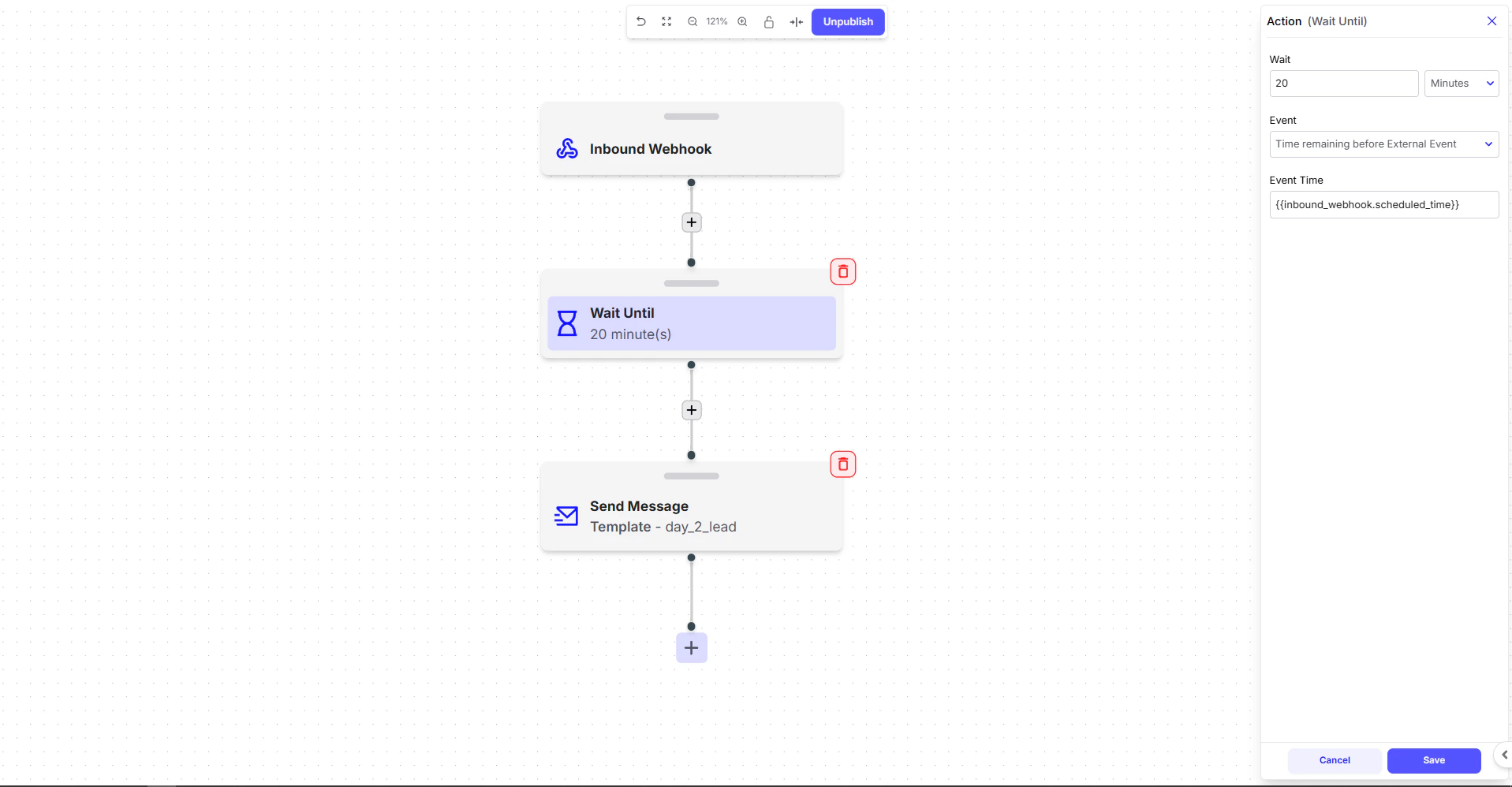
-
Inbound Webhook
- Captures the meeting data from your CRM, including the scheduled time.
-
Wait Until
- Configure the action to wait until a specific duration before the meeting.
- Example: 20 minutes before the scheduled meeting time.
- In the Event Time field, use a dynamic variable from the webhook:
- ⚠️ Make sure your CRM sends the date-time in this format:
If not you have to convert it in the format using the
Execute Codeaction before wait-until action then save that new variable and use it inEvent Timesection.
-
Send Message
- Finally, send a reminder message template to the user:
Hello, you have a meeting scheduled on Saturday at 1:00 PM. Thank you!
- Finally, send a reminder message template to the user:
Wait Until Working Hours
The Wait Until Working Hours function is a smart way to manage your conversational flows. This feature ensures that your chatbot’s journey continues only during a specified time window, preventing messages from being sent to customers at inconvenient times (e.g., midnight).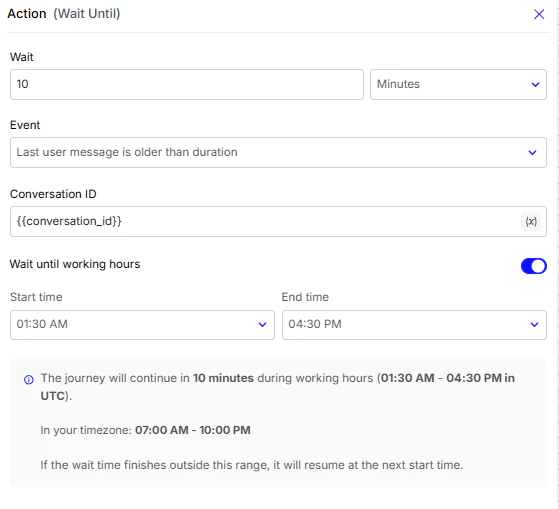
- You set a Start time and End time to define your working hours.
- The journey checks if the wait period ends within this window.
- If the wait finishes inside your working hours, the journey resumes immediately.
- If it finishes outside, the journey pauses and automatically resumes at the next scheduled start time.
💡 Note: The time range you configure is in UTC.
Your local timezone equivalent is shown just below the configuration (as seen in the screenshot).
📌 Example: Lead Qualification Follow-Up
📌 Example: Lead Qualification Follow-Up
Suppose you’re using an AI Agent for lead qualification on WhatsApp.
-
Lead Qualification Starts
- The AI asks for details like budget, location, and timeline.
- The user replies with some details but stops midway.
-
Wait Until Action
- Add a Wait Until step with the event:
Last user message is older than 1 hour. - This ensures that the journey only proceeds if the user has been inactive for at least an hour.
- Add a Wait Until step with the event:
-
Wait Until Working Hours
- Your working hours are set from 10:00 AM to 7:00 PM.
- If the 1-hour inactivity check ends at 3:00 PM, the follow-up is sent immediately.
- If the 1-hour inactivity check ends at 11:00 PM, the journey pauses and automatically resumes at 10:00 AM the next day.
-
Follow-Up Message
- The bot sends:
“Hey, just checking in. Would you like to continue with your booking?”
- The bot sends: